
How do I add discounts to quotes or invoices?
Discounting is flexible and intuitive in Jouver, designed to handle various discount types commonly used in vehicle saless.
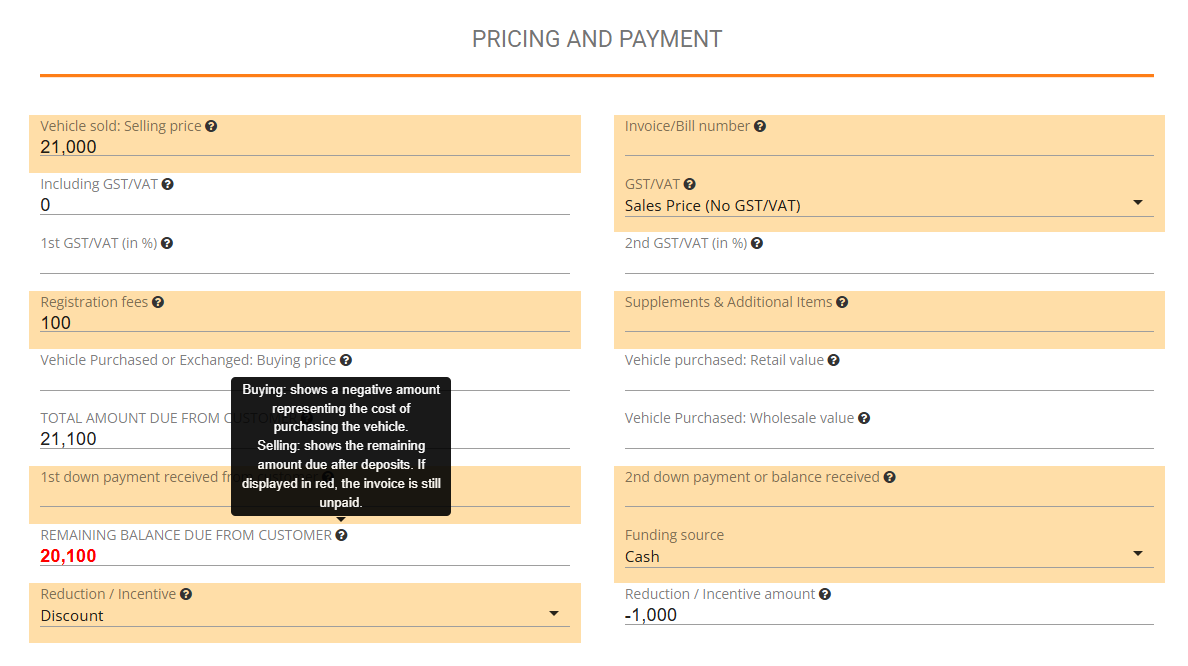
Use the Discount dropdown menu to select the type of reduction: Discount, Local Laws & Government Incentive, Partial refund, or Full refund.
Enter the discount amount and Jouver calculates the final amount automatically. When adding line items, enter a discount as a fixed amount. Jouver calculates the final amount automatically.
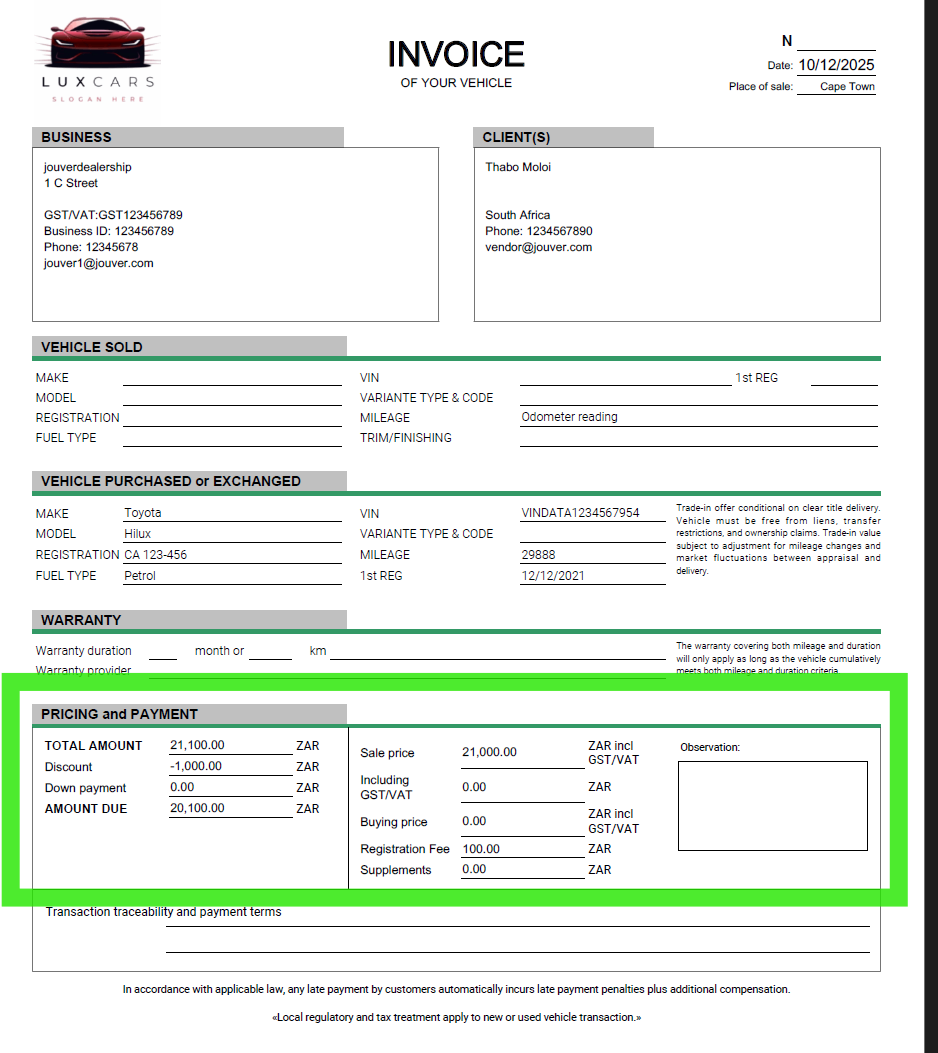
Sample Invoice with Discount applied :
Where to Find the Discount Field: As you create transaction, and if you are selling a vehicle, you'll see a "Discount" dropdown menu. This dedicated field is specifically designed to track all types of price reductions and incentives with proper categorization.
Four Discount Types Available:
1. Discount Use this option for standard dealership discounts including:
- Sales promotions and seasonal offers
- Manager specials and clearance events
- Corporate schemes and fleet discounts
- Cash purchase incentives
- Volume discounts for multiple vehicle purchases
- Military/Senior/Student discounts
- Loyalty discounts for returning customers
- Referral bonuses
- Trade-in allowances beyond base value
- Any general price reduction you offer
2. Local Laws & Government Incentive Use this option specifically for government-backed rebates and incentives including:
- Electric vehicle (EV) rebates and grants
- Hybrid vehicle incentives
- Low-emission vehicle subsidies
- Zero-emission vehicle programs
- Clean air zone incentives
- Scrappage schemes (trade-in old vehicles for environmental benefit)
- Green vehicle tax credits
- Regional or national environmental programs
- Any government-mandated or government-funded discount program
This separate category helps you track government incentives for accounting, compliance reporting, and claiming reimbursements from government programs.
3. Partial refund Use this option when issuing partial refunds on completed transactions:
- Customer returns optional equipment or services
- Agreed-upon price adjustment after delivery
- Compensation for minor issues discovered after sale
- Partial reversal of charges
- Credit for services not performed
Partial refunds adjust the final amount while maintaining a record of the original transaction.
4. Full refund Use this option when canceling a transaction entirely and refunding the complete amount:
- Customer cancels purchase before delivery
- Transaction voided by mutual agreement
- Complete reversal of sale
- Full credit back to customer
Full refunds create proper documentation for complete transaction reversals.
How to Apply Discounts:
Step 1: When creating a quote or invoice, add your line items with the full retail price.
Step 2: Click the Discount dropdown menu and select the appropriate discount type from the four options.
Step 3: Enter the discount as a fixed amount (e.g., 2,500 for government EV rebate, or 1,000 for sales promotion).
Step 4: Jouver immediately recalculates the line total, subtracting the discount from the base price.
Step 5: The discounted amount appears in the line total, and all subsequent calculations (subtotal, tax, final total) update automatically in real-time.
Automatic Calculations: Jouver handles all the math automatically. When you enter a discount amount, the system:
- Subtracts the discount from the line item price
- Recalculates the line total
- Updates the subtotal across all line items
- Applies the correct tax rate to the discounted price (important: discounts are typically applied before tax)
- Displays the final total including all discounts and taxes
This real-time calculation helps you see exactly how discounts affect your bottom line and the final price the customer pays.