
How do I use electronic signatures in Jouver?
Electronic signature (e-Signature) is a digital signing feature that allows customers to review and sign sales documents remotely from any device with internet access. Instead of printing documents, meeting in person, and collecting physical signatures, the entire signing process happens electronically through a secure link sent by email.
This feature streamlines your sales cycle, eliminates paperwork delays, and creates legally binding agreements that are automatically archived in your system.
WHEN TO USE ELECTRONIC SIGNATURES:
Use Jouver's e-signature feature when:
- Customer is ready to commit but can't come to the dealership immediately
- You want to close the deal quickly before the customer changes their mind
- Customer is located remotely or out of town
- You're selling outside normal business hours
- You want to reduce paperwork and manual document handling
- You need legally binding signatures with timestamp verification
- Customer prefers digital processes over paper
- You want automatic document archiving without scanning
Electronic signatures are legally valid in most jurisdictions and provide the same binding force as traditional handwritten signatures when properly implemented.
STEP 1: PREPARE THE TRANSACTION
Before sending an e-signature request, ensure the transaction is complete and ready for customer commitment:
Create the Sale Transaction: Follow the standard process described in "How do I create a quote and send an invoice?" to create your sale transaction. This includes selecting the vehicle from stock, adding customer information, setting the selling price, applying any discounts, and configuring payment terms.
Verify Required Information: Electronic signatures require two critical pieces of customer information:
- Email address: Where the signing link will be sent
- Phone number: Required for verification and communication
Confirm both fields are filled in correctly. A single typo in the email address will prevent delivery of the signing request.
Review Transaction Accuracy: Double-check all transaction details before requesting signature:
- Vehicle information is correct (make, model, VIN, mileage)
- Customer information is accurate (name spelling, address, contact details)
- Selling price is final (including any discounts or incentives)
- Payment terms are clearly stated (deposit amount, balance due, payment method)
- Any trade-in details are complete and accurate
Once a customer signs, making changes requires issuing credit notes or amendments, so accuracy at this stage is critical.
STEP 2: SEND THE E-SIGNATURE REQUEST
Locate the Digital Signature Button: Open the vehicle sale transaction in Jouver. Look for the "Request e-Signature via email" button, typically located in the transaction toolbar or action area.
Click Digital Signature: Click the button once. Jouver immediately validates that the customer has both email and phone number on file. If either is missing, you'll receive a warning to add the information before proceeding.
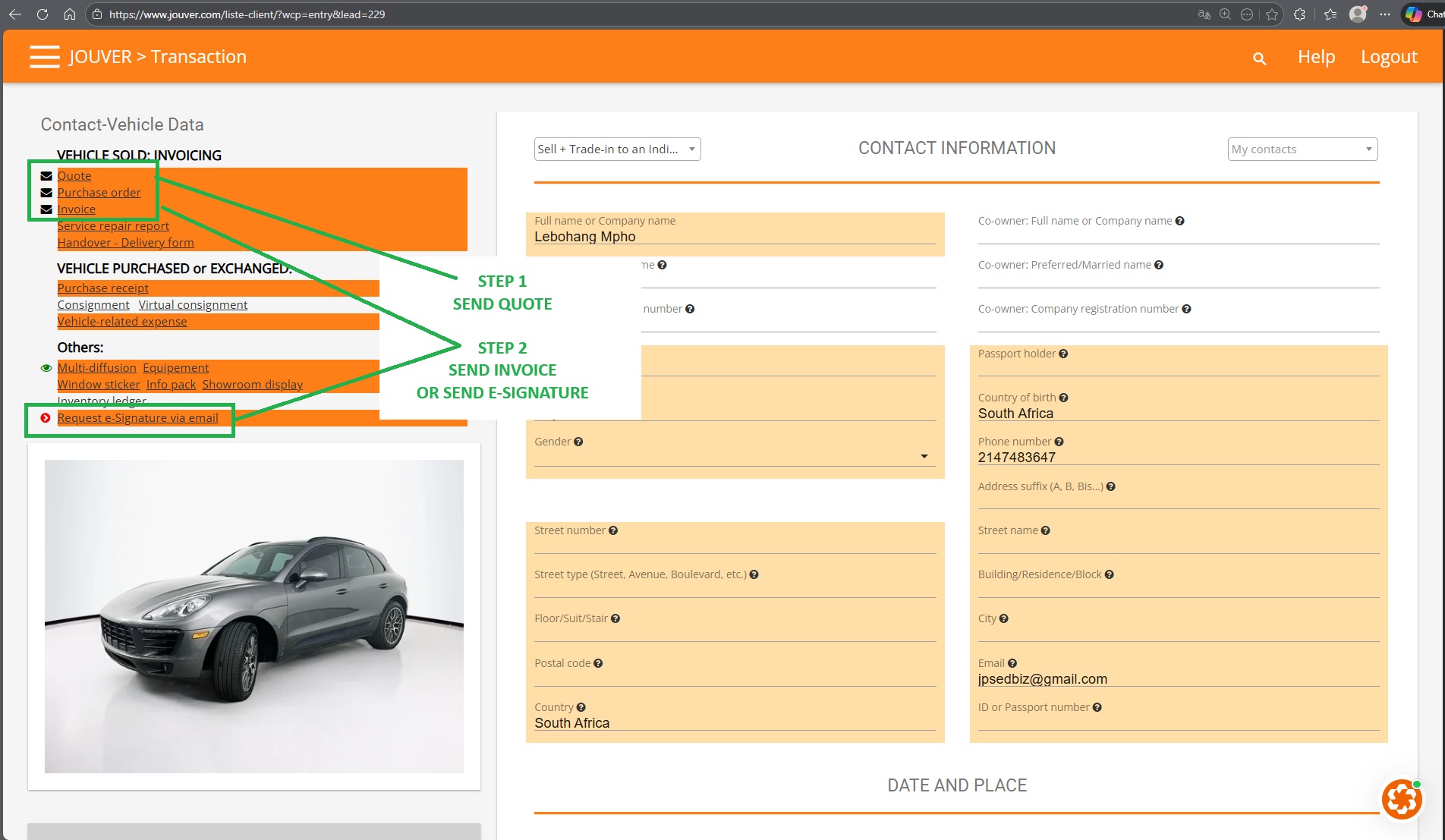
Automatic Email Generation: Once validated, Jouver automatically composes and sends a professional email to the customer containing:
- Greeting and introduction
- Complete vehicle details (make, model, year, VIN, mileage, features)
- Selling price and payment terms
- Your dealership terms and conditions
- Secure, unique signing link (only valid for this customer and transaction)
- Instructions on how to review and sign
- Your contact information if they have questions
The email is sent immediately—no drafting, no manual sending required.
Confirmation: You'll receive confirmation that the e-signature request was sent. The transaction status updates to reflect a pending signature.
STEP 3: CUSTOMER RECEIVES AND REVIEWS
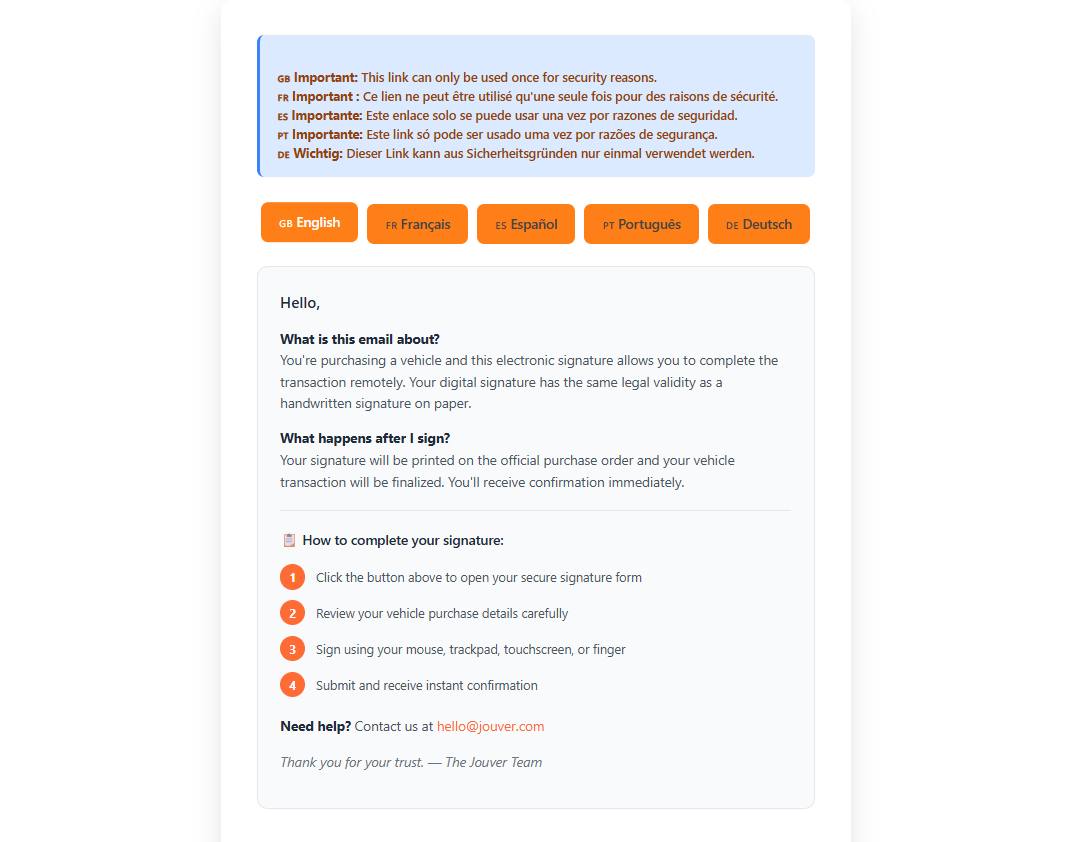
Customer Email: Within minutes, your customer receives the e-signature request email in their inbox. The email comes from your Jouver account and displays your dealership branding.
Email Contents: The customer sees:
- Professional email with your dealership details
- Complete vehicle information they're purchasing
- Full pricing breakdown including any discounts or fees
- Terms and conditions they're agreeing to
- Prominent "Click here to review and sign" button with secure link
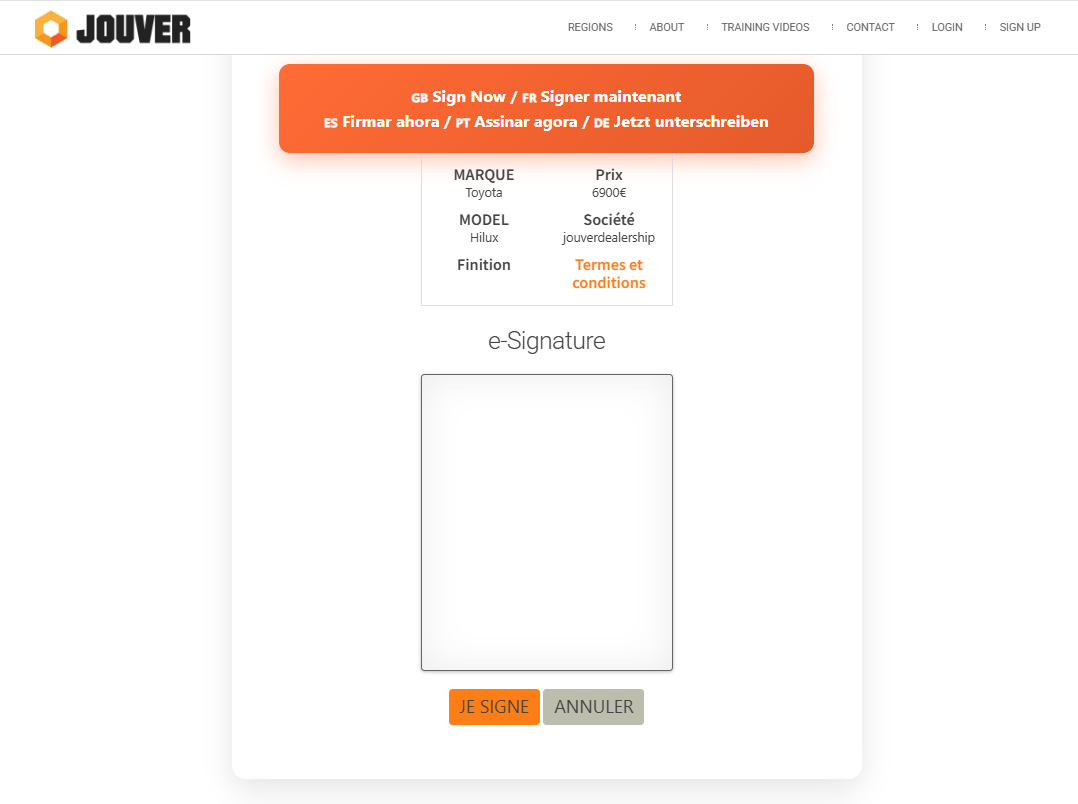
Secure Review Page: When the customer clicks the link, they're taken to a secure Jouver-hosted page displaying:
- All transaction details for final review
- Vehicle specifications and features
- Complete pricing and payment information
- Your dealership's terms and conditions
- All documents they're signing (purchase order, invoice, compliance forms)
The customer can review everything carefully before committing.
No Account Required: Customers don't need to create a Jouver account or download any software. The signing process works in any web browser on any device—desktop, laptop, tablet, or smartphone.
STEP 4: CUSTOMER SIGNS DIGITALLY
Signature Process: After reviewing all information, the customer clicks the "I sign" or signature button. Depending on your e-signature provider's settings, they may:
- Click to consent to electronic signature
- Type their name as signature
- Draw signature with mouse or finger
- Receive SMS verification code for additional security
The process takes less than one minute to complete.
Confirmation: Once signed, the customer receives:
- On-screen confirmation that signing is complete
- Automatic confirmation email with signed document copies
- Transaction summary with next steps
- Your contact information for questions
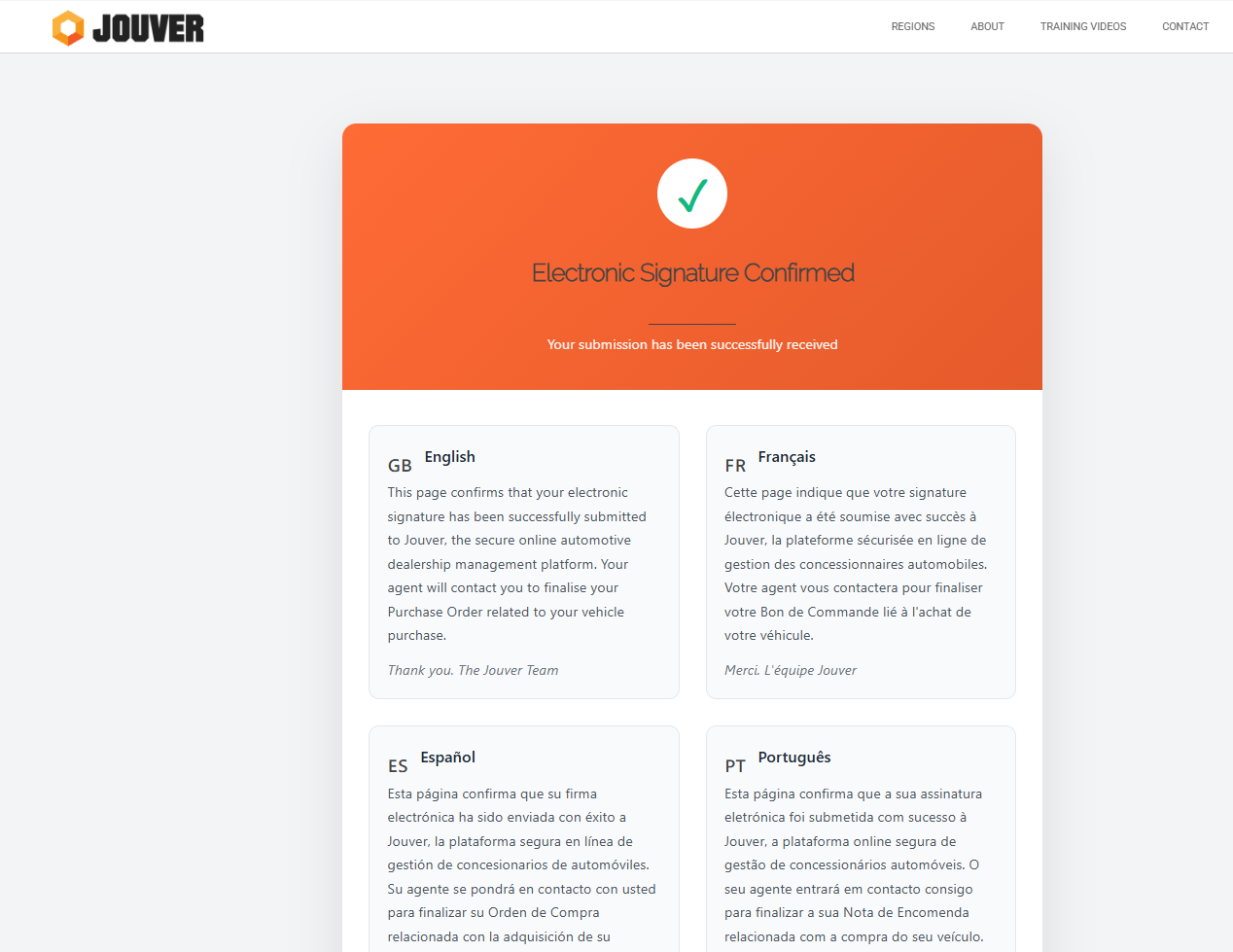
Immediate Notification: You receive instant notification that the customer has signed. The transaction status in Jouver updates from "pending signature" to "signed."
STEP 5: AUTOMATIC DOCUMENT GENERATION
What Happens After Signing: The moment the customer clicks "I sign," Jouver's automated document system activates:
Documents Automatically Generated:
- Purchase Order: Fully signed with customer's electronic signature
- Invoice: Complete invoice with all line items and signature
- Delivery Note: Signed receipt for vehicle delivery
- Compliance Forms: All required regulatory documents with signatures
- Terms & Conditions: Signed acknowledgment of dealership policies
Signature Placement: The customer's electronic signature is automatically placed in the appropriate location on each document type. The signature appears professionally formatted with:
- Customer's name
- Date and timestamp of signing
PDF Generation: All signed documents are immediately converted to PDF format and saved in your transaction records. These PDFs are:
- Permanently archived in Jouver
- Accessible from the transaction record
- Downloadable for printing or emailing
- Legally admissible as signed agreements
STEP 6: ACCESS SIGNED DOCUMENTS
Where to Find Signed Documents: Navigate to the SALES in Jouver. Open the transaction detail view. Look for the documents section where you'll see all available documents.
Document Indicators: Signed documents are clearly marked with:
- Green signature icon or "Signed" badge
- Date and time of signature
- Signature status indicator
Download and Share: Click on any document to:
- Preview in your browser
- Download PDF to your computer
- Print for physical records
- Email to customer, lender, or other parties
- Forward to accounting or administrative staff
Archive Access: Even if you later disable signature display (see Managing Signatures below), the original signed versions remain permanently archived and accessible through the transaction record.
STEP 7: MANAGING SIGNATURES
Signature Status Icons: Jouver uses color-coded icons to show signature status at a glance:
- Red icon: E-signature request sent but customer hasn't signed yet
- Gray icon: Signature display disabled by you (but archive copy remains)
- Green icon: Customer has signed and documents are complete
Disabling Signature Display: If you need to hide signatures from printed or displayed documents:
- Return to the transaction record
- Click the "Digital Signature" button again
- This toggles the signature display OFF
- Icon changes from green to gray
- Documents no longer show signature when previewed or printed
Why Disable Display: You might disable signature display if:
- Creating a clean copy for internal use
- Need unsigned version for comparison
- Generating templates from existing transactions
- Prefer physical signatures on final documents
Archive Remains Intact: Disabling display does NOT delete the signature. The original signed documents remain in your archive with full signature, timestamp, and verification data. You can reactivate display anytime by clicking the Digital Signature button again.
LEGAL VALIDITY AND COMPLIANCE
Are Electronic Signatures Legal? Electronic signatures are legally valid and enforceable in most countries:
- United States: ESIGN Act and UETA provide legal framework
- European Union: eIDAS regulation establishes standards
- United Kingdom: Electronic Communications Act 2000
- Canada: PIPEDA and provincial electronic commerce acts
- Australia: Electronic Transactions Act 1999
Electronic signatures have the same legal standing as handwritten signatures for most contracts, including vehicle sales agreements.
What Makes Them Valid: For an e-signature to be legally enforceable, it must meet these criteria:
- Intent to sign: Customer consciously chooses to sign
- Consent to electronic process: Customer agrees to sign electronically
- Association with record: Signature is linked to the specific document
- Record retention: Signed documents are stored and accessible
- Authentication: System can verify who signed and when
Jouver's e-signature system meets all these requirements.
Audit Trail: Each e-signature in Jouver creates a comprehensive audit trail including:
- Email address of signer
- Date and exact time of signature
- IP address signature originated from
- Device type used (mobile, desktop, etc.)
- Unique signature transaction ID
- Confirmation emails sent to all parties
This audit trail provides proof of signature authenticity if ever questioned.
Best Practices for Legal Protection:
- Verify customer identity before sending signature request
- Ensure customer's email address is correct (prevents wrong person signing)
- Keep all confirmation emails as additional proof
- Print and file signed PDFs according to your records retention policy
- Never alter documents after signature (create new documents with credit notes if changes needed)
- Ensure your terms and conditions are clear and legally sound
When NOT to Use E-Signature: Some situations require traditional signatures:
- Notarized documents (notaries must witness physical signatures)
- Court-ordered documents
- Wills and trusts
- Some financing documents (lender may require physical signature)
- Situations where customer doesn't have email access or digital literacy
Check with legal counsel if uncertain whether e-signature is appropriate for specific situations.
TROUBLESHOOTING COMMON ISSUES
Issue: Icon Stays Red After Sending Possible Causes:
- Email didn't reach customer (wrong address, spam folder)
- Customer hasn't opened the email yet
- Customer opened but didn't complete signing
- Link expired (some systems have time limits)
Solutions:
- Verify email address is correct in customer contact record
- Contact customer to confirm they received email
- Ask them to check spam/junk folders
- Resend signature request if link expired
- Walk customer through process by phone if confused
Issue: Customer Says They Can't Access Link Possible Causes:
- Link expired or already used
- Email security system blocked the link
- Customer using outdated browser
- Technical issues with customer's internet connection
Solutions:
- Resend the signature request (generates new link)
- Ask customer to try different browser (Chrome, Firefox, Safari, Edge)
- Have customer try from different device
- Ensure customer has stable internet connection
- Consider alternative signing method if persistent technical issues
Issue: Signature Not Appearing on Documents Possible Causes:
- Customer didn't complete the entire signing process
- System error during document generation
- Signature display has been disabled
Solutions:
- Check signature status icon (should be green)
- Verify customer received confirmation email
- Check if Digital Signature toggle is ON (not gray)
- Access archive to confirm signature was captured
- Contact Jouver support if signature genuinely missing
Issue: Wrong Customer Signed Possible Causes:
- Email address belongs to different person (spouse, family member, assistant)
- Customer forwarded link to someone else
- Error in contact information
Solutions:
- Verify who actually signed by checking audit trail details
- If unauthorized signature, void the transaction and restart
- Update contact records with correct email for future
- Implement additional verification for high-value transactions
- Consider requiring phone verification for added security