
How do I create a quote and send an invoice?
Click the Plus button to create a new transaction, select the vehicle from stock, add customer details, set the selling price and terms, then save. Preview the quote as PDF and email it to the client. When accepted, send the invoice by email or use e-signature features. Jouver automatically generates the invoice with all details from the quote.
Details: The quote-to-invoice workflow is designed for efficiency and accuracy:
Step 1: Create a New Quote Click the Plus (+) button in the top right corner to create a new transaction for a potential buyer. Select the vehicle from your stock that you want to quote. Jouver automatically recalls the vehicle details including make, model, VIN, mileage, and your intended retail value.
Step 2: Add Customer Information Add your customer from your existing contacts database, or enter their information manually if they're a new contact. Include their full name, email address, phone number, and physical address. Accurate contact details are essential for emailing the quote and following up.
Step 3: Configure Pricing and Terms The selling price is pre-filled from your stock retail value, but you can adjust it if offering a special price. Include all line items with clear descriptions, selling prices, and appropriate tax rates for your region. You can apply discounts as fixed amounts (e.g., 500 off). Add any additional fees like registration costs, documentation fees, or delivery charges as separate line items.
Step 4: Save and Preview Save the quote and Jouver automatically assigns a quote number for tracking. Preview it as a PDF to verify all information appears correctly, including your company logo, customer details, vehicle specifications, pricing breakdown, terms and conditions, and payment terms. Make any necessary adjustments before sending.
Step 5: Send Quote to Customer Click the "✉︎" button to email the quote directly to your client by email. The customer receives a professional PDF quote with all details clearly presented. Jouver keeps the quote in an active state until you close or convert it, making it easy to reference or revise if the customer has questions.
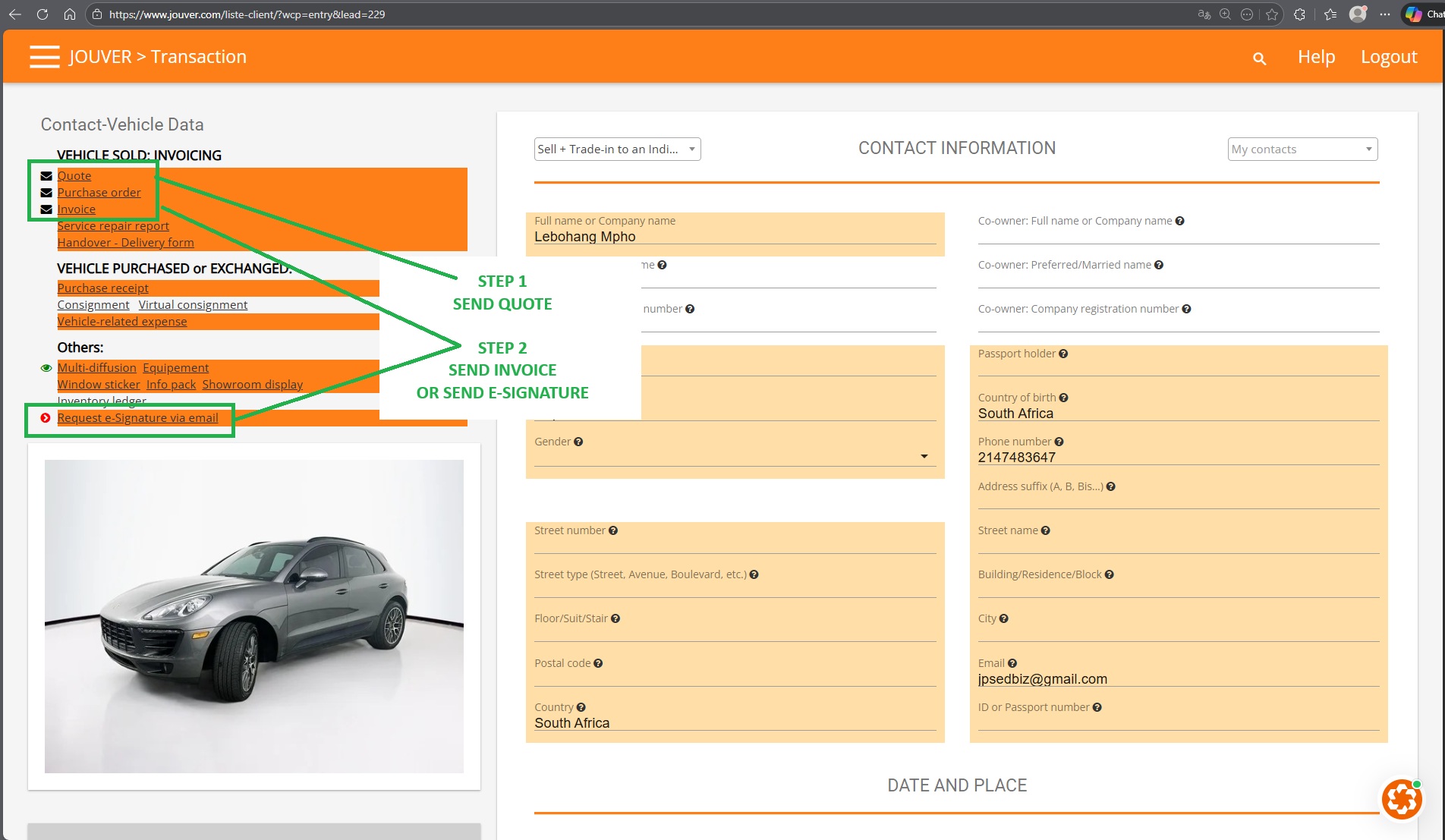
Step 6: Customer Acceptance When your customer accepts the quote and is ready to proceed, you have two options:
Option A - Send Invoice Directly: Send the invoice by email to formalize the sale bu clicking ✉︎ next to Invoice. Jouver generates a complete invoice document with a new invoice number, automatically copying all line items, prices, tax calculations, and customer information from the original quote. This eliminates duplicate data entry and ensures perfect accuracy between your quote and final invoice (this is key for your accounting)
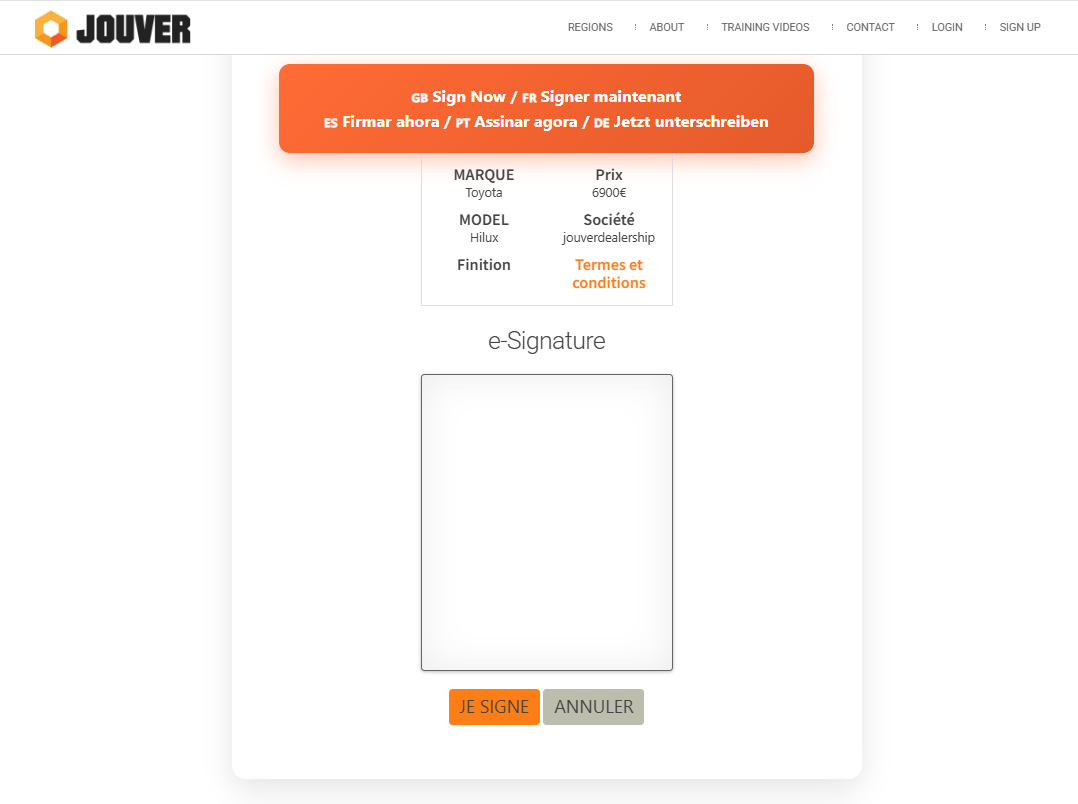
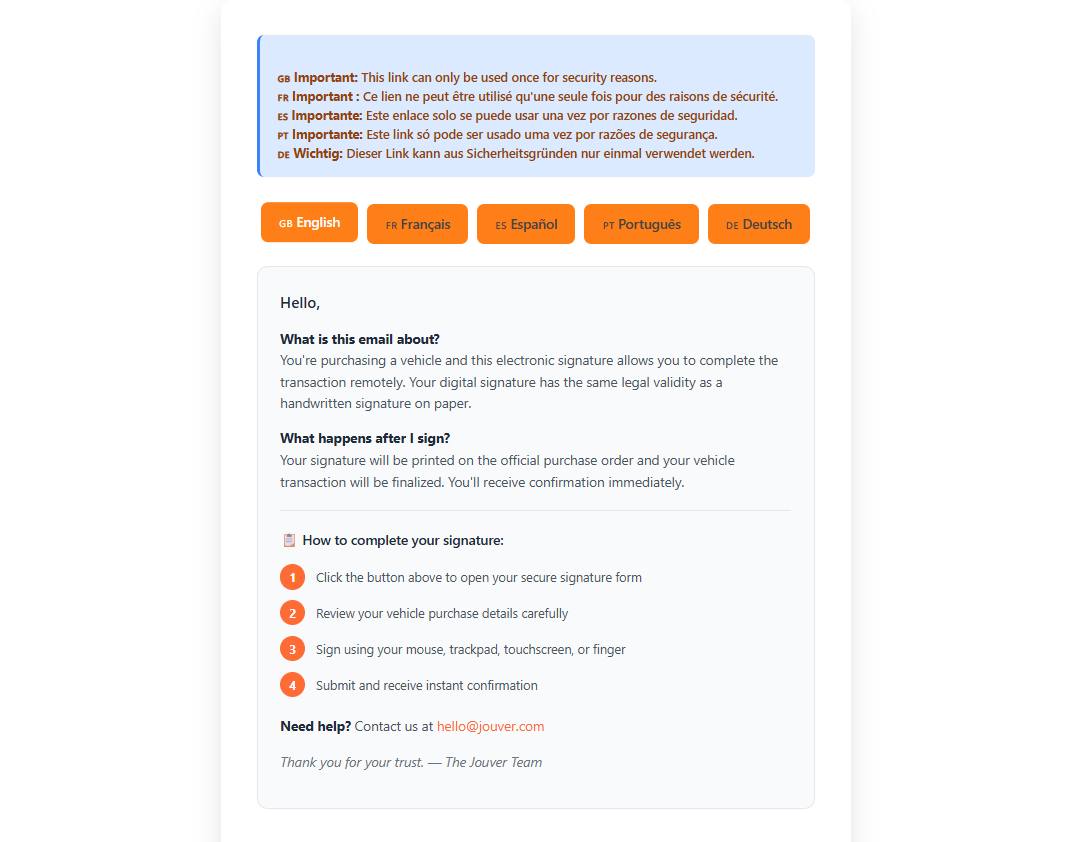
Option B - Use E-Signature Features: For faster processing and legally binding agreements, use Jouver's e-signature feature. The customer receives an email with vehicle details and a secure signing link. Once they click "I sign," Jouver automatically generates signed documents including the invoice, purchase order, and all required compliance forms. The signature appears on all relevant documents and is saved as PDF in your sales records.
Benefits of Jouver Workflow:
- No duplicate entry: Quote details transfer automatically to invoice
- Consistency guaranteed: Prices and terms match exactly between documents
- Professional presentation: Branded PDFs with your logo and formatting
- Audit trail: Complete record from quote to signed invoice
- Time savings: Minutes instead of retyping all information
- Error reduction: Automatic transfer prevents transcription mistakes
Quote Management: Active quotes remain accessible until you convert them to invoices or manually close them. You can maintain multiple open quotes for different customers, revise quotes if customers request changes, track which quotes have been sent and to whom, and convert any quote to an invoice instantly when the deal closes.
This streamlined quote-to-invoice process ensures professional customer communication while maintaining accurate financial records throughout the sales cycle.