
How do I create a service invoice not related to vehicle sales?
Go to INVOICES module, click "+" next to INVOICES, enter customer information, add service line items with descriptions, quantities, and prices, select tax rates, and save. Jouver calculates totals automatically.
WHAT ARE SERVICE INVOICES?
Service invoices in Jouver are designed for billing repairs, maintenance, parts, labor, and other services beyond vehicle sales. This allows you to manage your complete dealership revenue stream—both vehicle sales and service department income—in one unified system.
WHEN TO USE SERVICE INVOICES
Service Department Work:
- Vehicle repairs and maintenance
- Oil changes and routine servicing
- Brake repairs and tire replacements
- Engine diagnostics and repairs
- Body work and paint services
- Detailing and cleaning services
Parts Sales:
- Selling parts to customers without installation
- Aftermarket accessories and upgrades
- Replacement components
- Performance parts
Administrative Services:
- Registration and title processing
- Documentation fees
- Delivery charges
- Storage fees
Specialized Services:
- Custom fabrication work
- Performance tuning and programming
- RV and marine servicing
- Commercial fleet maintenance
- Mobile emergency services
ACCESSING THE INVOICE SCREEN
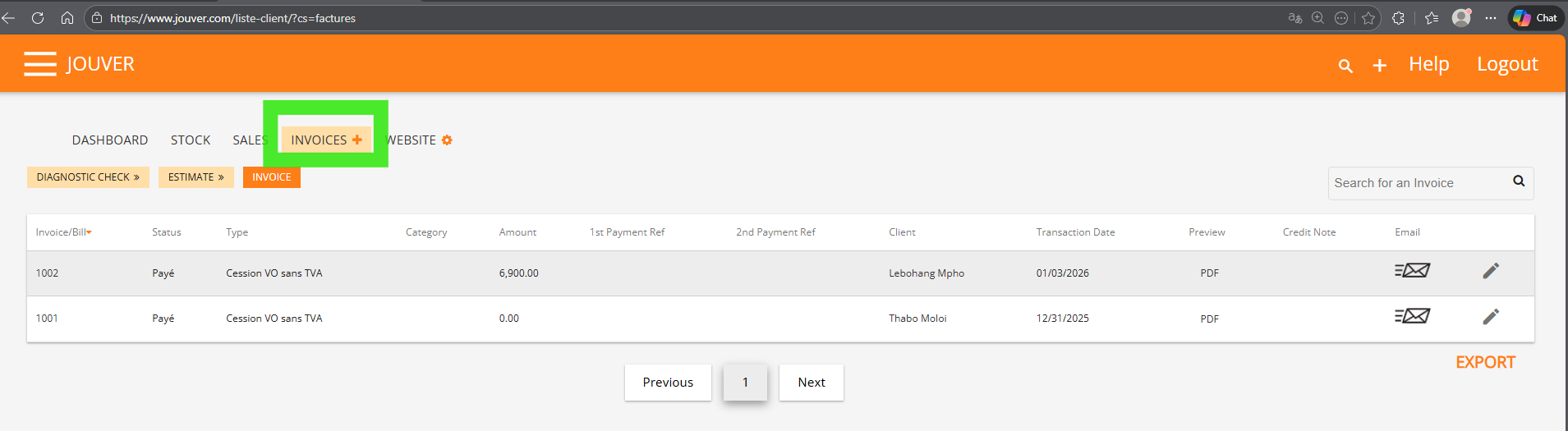
Step 1: Navigate to Invoices From the main Jouver menu, click on INVOICES (shown in the top navigation bar alongside DASHBOARD, STOCK, and SALES).
Step 2: Choose Document Type At the top of the screen, you'll see three tabs:
- DIAGNOSTIC CHECK (orange button with arrow)
- ESTIMATE (orange button with arrow)
- INVOICE (orange button)
Click INVOICE to create a service invoice (as opposed to a quote or estimate).
INVOICE HEADER INFORMATION
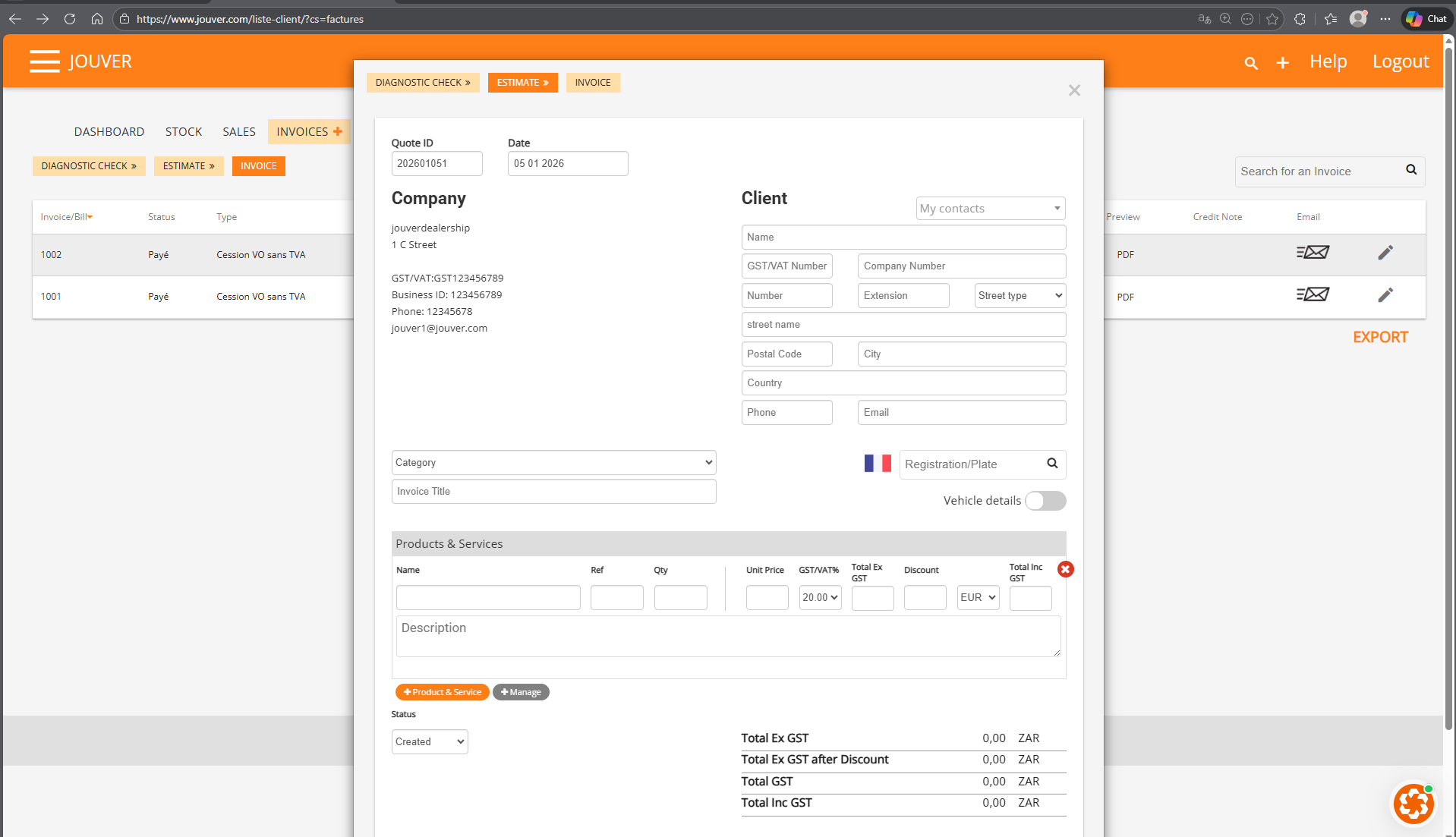
Order ID / Invoice Number: Jouver automatically generates the next sequential invoice number based on your configured numbering sequence. You can manually override this if needed.
Example: "202601051" or "1003"
Date: The current date is pre-filled automatically. You can change it if you're creating an invoice for a different date.
Example: "05 01 2026"
Company Information (Auto-Filled): Your dealership information appears automatically from your account settings:
- Company name (e.g., "jouverdealership")
- Address (e.g., "1 C Street")
- GST/VAT number (e.g., "GST123456789")
- Business ID (e.g., "123456789")
- Phone number (e.g., "12345678")
- Email (e.g., "jouver1@jouver.com")
This information is pulled from your company settings and ensures consistent, professional branding on all invoices.
CLIENT INFORMATION
Adding Customer Details: Fill in complete customer information in the Client section:
Basic Information:
- Name: Customer's full name
- GST/VAT Number: If customer is a business with tax registration
- Company Number: Business registration number if applicable
Address Fields:
- Number: Street number
- Extension: Apartment, suite, or unit number
- Street type: Dropdown menu (Street, Avenue, Road, etc.)
- Street name: Name of the street
- Postal Code: ZIP or postal code
- City: City name
- Country: Country name
Contact Information:
- Phone: Customer's phone number
- Email: Customer's email address for sending invoice
Quick Selection: Use the "My contacts" dropdown at the top of the Client section to select an existing customer from your database. This auto-fills all their information, saving time for repeat customers.
SERVICE CATEGORY SELECTION
Choose Invoice Category: Click the Category dropdown menu to select the type of service you're invoicing. Jouver provides 15+ specialized categories to properly classify your services:
Available Categories:
- Registration & Title: Vehicle registration processing, title transfers, license plate services, documentation handling
- General Service: Routine maintenance, oil changes, fluid checks, filter replacements, general inspections
- Courtesy & Rental Vehicles: Loaner vehicle charges, courtesy car services, rental vehicle management
- Specialized Systems (RV/Marine/Commercial): Services for recreational vehicles, boats, marine craft, commercial trucks, specialized equipment
- Parts & Components: Parts sales, component replacements, accessories, aftermarket equipment
- Labor & Installation: Labor charges, installation services, assembly work, fitting and mounting
- Performance & Custom: Performance tuning, custom modifications, aftermarket upgrades, ECU programming
- Diagnostics & Programming: Computer diagnostics, error code reading, software updates, system programming
- Body & Appearance: Body work, paint services, dent removal, detailing, cosmetic repairs
- Transportation & Logistics: Vehicle delivery, towing services, transport charges, logistics fees
- Insurance & Warranties: Warranty work, insurance claim repairs, extended warranty services
- Fleet & Commercial Services: Fleet maintenance contracts, commercial vehicle servicing, bulk service agreements
- Seasonal & Storage: Winter storage, seasonal preparation, long-term storage services
- Emergency & Mobile: Mobile repair services, emergency roadside assistance, after-hours service
- Other Services: Any services not covered by above categories
Why Categories Matter:
- Organized Reporting: Track revenue by service type
- Accounting Classification: Proper categorization for bookkeeping
- Tax Treatment: Different services may have different tax rates
- Business Analysis: Identify most profitable service lines
- Inventory Management: Link parts usage to service categories
VEHICLE INFORMATION (OPTIONAL)
Registration/Plate Lookup: If the service relates to a specific vehicle, you can enter the registration plate number in the search field with the French flag icon (or your country's flag). Click the search button and Jouver retrieves:
- Vehicle make and model
- VIN
- Registration details
- Mileage
- Customer ownership information
Vehicle Details Toggle: Use the "Vehicle details" toggle switch to show or hide vehicle-specific fields:
- VERSION
- REG/PLATE NUMBER
- ANTI-THEFT WHEEL NUTS
- ROADWORTHINESS VALIDITY
This is useful when invoicing vehicle-related services but can be hidden for non-vehicle services like parts sales or administrative fees.
ADDING PRODUCTS & SERVICES
Products & Services Section: This is where you itemize everything you're charging for. Each line item includes
Column Headers:
- Name: Description of product or service
- Ref: Reference or part number
- Qty: Quantity
- Unit Price: Price per unit (before tax)
- GST/VAT%: Tax rate dropdown (e.g., 20.00%)
- Total Ex GST: Calculated total before tax
- Discount: Reduction/incentive amount (see discount article)
- Total Inc GST: Final total including tax
- Currency: Currency selector (EUR, USD, etc.)
- Delete button (X): Remove line item
Adding Line Items:
Step 1: Click in the Name field and type a clear description of the service or product.
Example descriptions:
- "Oil change and filter replacement"
- "Front brake pad installation"
- "Alternator - Part #ALT-4567"
- "Labor - Engine diagnostics (2 hours)"
- "Vehicle registration processing fee"
Step 2: Enter Ref (reference number) if applicable. This might be:
- Part number for parts
- Service code from your system
- Job reference number
- Leave blank if not applicable
Step 3: Enter Qty (quantity):
- Number of parts (e.g., 4 for spark plugs)
- Hours of labor (e.g., 2.5 hours)
- Usually 1 for flat-rate services
Step 4: Enter Unit Price (price before tax):
- Price per part
- Hourly labor rate
- Flat service fee
- Enter amount in numbers only (e.g., 45.00)
Step 5: Select GST/VAT% tax rate from dropdown:
- 20.00% for standard taxable services
- 10.00% for reduced-rate items
- 0.00% for tax-exempt services
- Varies by country and service type
Step 6: Jouver automatically calculates:
- Total Ex GST: Quantity × Unit Price
- Total Inc GST: Total Ex GST + tax amount
Step 7: Enter Discount if applicable (see "How do I add discounts to quotes or invoices?" article for details on discount types).
Step 8: Verify Currency is correct (EUR, USD, ZAR, etc.).
Description Field: Below the line item row, you'll see a large Description text box. Use this for:
- Detailed service explanations
- Warranty information
- Special terms or conditions
- Technical specifications
- Customer notes or requests
This description appears on the invoice below the line item, providing additional context.
MANAGING LINE ITEMS
Add More Line Items: Click the orange + Product & Service button to add additional lines. You can add unlimited line items to a single invoice.
Common Multi-Line Scenarios:
- Parts + Labor (separate lines)
- Multiple parts for same repair
- Diagnostic fee + repair work
- Parts + installation + disposal fees
Manage Button: Click the gray + Manage button for additional line item management options (functionality may vary).
Delete Line Items: Click the red X button on the right side of any line to remove it from the invoice.
INVOICE TOTALS (AUTO-CALCULATED)
Jouver automatically calculates and displays four key totals on the right side:
Total Ex GST: Sum of all line items before tax (e.g., 0,00 ZAR)
Total Ex GST after Discount: Total after applying any discount amounts (e.g., 0,00 ZAR)
Total GST: Sum of all tax amounts across all line items (e.g., 0,00 ZAR)
Total Inc GST: Final invoice total including all taxes—this is what the customer pays (e.g., 0,00 ZAR)
These totals update in real-time as you add, modify, or remove line items, change quantities or prices, or apply discounts.
PAYMENT INFORMATION
Status Dropdown: Select invoice status from the dropdown:
- Created: Invoice drafted but not sent
- Sent: Invoice sent to customer
- Paid: Payment received in full
- Partially Paid: Partial payment received
- Overdue: Payment past due date
- Cancelled: Invoice cancelled
Payment Method (1):
- Select from dropdown (Check, Cash, Bank Transfer, Credit Card, etc.)
- Amount paid: Enter amount received
- Reference: Payment reference number or check number
Payment Method (2): Add a second payment method if customer pays with multiple methods (e.g., part cash, part check).
INVOICE TITLE (OPTIONAL)
Enter a custom Invoice Title to describe the overall work or give the invoice a memorable name:
- "Annual Fleet Maintenance - January 2026"
- "Collision Repair - Customer John Smith"
- "Routine Service Package"
This title appears prominently on the invoice document.
SAVING AND SENDING THE INVOICE
Save the Invoice: Click the save button (typically at bottom of form or in toolbar). Jouver:
- Assigns the invoice number permanently
- Saves all information to your database
- Makes the invoice accessible from the invoice list
- Generates a PDF document
Preview Invoice: Click PDF or Preview button to see how the invoice will appear to the customer. Review for:
- Accurate company and customer information
- Correct line items and pricing
- Proper tax calculations
- Professional appearance
Email to Customer: Click the Email icon (envelope symbol) to send the invoice directly to the customer's email address. The customer receives:
- Professional PDF invoice attached
- Your company branding
- Payment instructions
- Contact information for questions
Download or Print: Download the PDF to your computer for printing, archiving, or attaching to other communications.
INVOICE LIST MANAGEMENT
Viewing All Invoices: From the INVOICES menu, you see a list of all created invoices with columns:
- Invoice/Bill#: Invoice number (e.g., 1002, 1001)
- Status: Payment status (Payé = Paid, Unpaid, etc.)
- Type: Invoice type/category (e.g., "Cession VO sans TVA")
- Preview: PDF icon to view invoice
- Credit Note: Edit icon to create credit note if needed
- Email: Envelope icon to send invoice
Search Function: Use "Search for an Invoice" box to quickly find specific invoices by:
- Invoice number
- Customer name
- Amount
- Date range
Export Function: Click the orange EXPORT button to export accounting data (see "How do I export accounting data for my accountant?" article for complete instructions).
CREATING PRODUCTS FOR REUSE
What is a Product?
Instead of manually entering the same services or parts repeatedly, you can create reusable "Products" that store:
- Standard service descriptions
- Fixed pricing
- Default tax rates
- Reference numbers
- Common line item configurations
Benefits of Creating Products:
- Speed: Add common services with one click instead of typing each time
- Consistency: Same description and pricing every time
- Accuracy: Eliminates typing errors for frequently-sold items
- Professionalism: Standardized descriptions across all invoices
How to Create a Product:
Click the + Product & Service button in the invoice screen, OR navigate to a dedicated Products management section in Jouver (location may vary by version).
Product Configuration:
- Product Name: "Oil Change Service", "Front Brake Pads", "Diagnostic Hour"
- Description: Detailed explanation that appears on invoices
- Reference Number: Part number or service code
- Default Price: Standard price (can be adjusted when adding to invoice)
- Tax Rate: Default tax percentage
- Category: Link to service categories for reporting
Using Products: When creating future invoices, select from your saved products instead of typing from scratch. The product information populates automatically, and you can adjust quantity or price as needed for specific jobs.
Link to Detailed Article: [See detailed article: "How to Create and Manage Products in Jouver" for complete step-by-step instructions on building a reusable product library]
QUOTE ID VS INVOICE NUMBER
You may notice the form can switch between showing:
- Quote ID: When in estimate/quote mode (202601051)
- Invoice No.: When in invoice mode (1003)
Both use similar interfaces but serve different purposes:
- Quotes: Preliminary pricing for customer approval (see "How do I create a quote and send an invoice?")
- Invoices: Final billing documents for completed work
The workflow typically follows: Create Quote → Customer Approves → Convert to or Create Invoice → Collect Payment.
BEST PRACTICES FOR SERVICE INVOICES
Detailed Descriptions: Provide clear, specific descriptions so customers understand exactly what they're paying for. "Brake service" is vague; "Front brake pad replacement including parts and labor" is clear.
Itemize Labor and Parts: Separate labor charges from parts charges on different line items. This transparency builds customer trust and helps if warranty claims arise later.
Use Reference Numbers: Include part numbers or service codes. This helps with:
- Inventory tracking
- Warranty claims
- Repeat orders
- Customer questions months later
Record Payment Immediately: Update the Status and Payment Method fields as soon as payment is received. This keeps your accounts receivable accurate and prevents confusion about who owes what.
Send Promptly: Email invoices immediately after work completion. Fast invoicing leads to faster payment and reduces collections issues.
Consistent Pricing: Use your saved Products for standardized pricing on common services. Inconsistent pricing for the same service confuses customers and looks unprofessional.
Tax Compliance: Always select the correct tax rate. Tax errors create accounting nightmares and potential compliance issues with tax authorities.
Follow Up on Unpaid: Review your invoice list regularly for overdue payments. Send friendly reminders and follow up professionally on outstanding balances.
Details: Service invoicing lets you bill for repairs, maintenance, parts, labor, and other services beyond vehicle sales. Access the Invoicing module from your main menu and click the button to create a new invoice. Jouver generates the next invoice number automatically. Start by entering or selecting your customer from your contact database. Then add line items for each service you're charging for. Type a clear description, enter the quantity, set the unit price, and select the appropriate tax rate for that service. You can add as many line items as needed for complex jobs. If offering a discount, enter it as a fixed amount or percentage on any line. As you add items, Jouver calculates running totals for subtotal, tax, and final amount. You can adjust the total invoice amount if needed for rounding, and Jouver will recalculate the pre-tax amount accordingly. Save the invoice and you can immediately print it, download as PDF, or email it to your customer. The invoice includes all your company branding and meets professional standards.